4.1 Types of software and interrupts
This topic explains the different types of software used by a computer, the role and functions of an operating system, how application software is started and controlled, and how interrupts and buffers allow a processor to respond efficiently to events.
What you need to understand
You should be able to distinguish system software from application software; explain utilities and device drivers; describe the main functions of an operating system; compare CLI and GUI interfaces; explain booting, BIOS and firmware; and trace what happens when an interrupt is raised, serviced and completed.
System software and application software
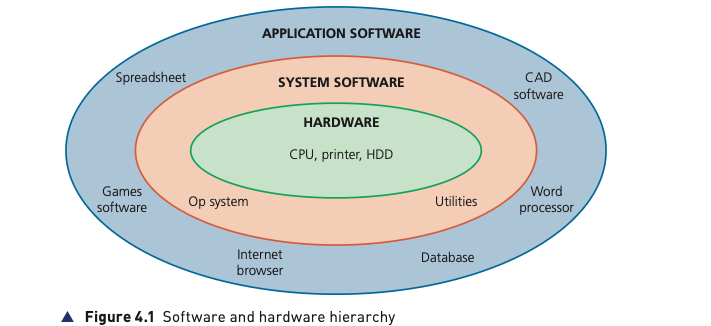
A computer begins as hardware: processor, memory, storage, input devices and output devices. Hardware becomes useful only when software tells it what to do. The topic separates software into two broad groups: system software, which controls the computer and provides the environment in which other programs operate, and application software, which performs tasks chosen by the user.
System software
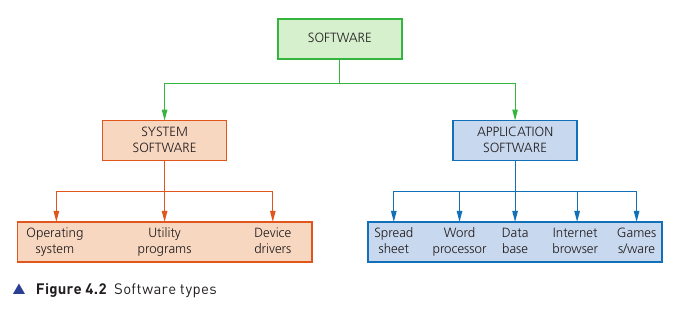
System software is a collection of programs that control and manage computer hardware. It provides a platform on which other software can run, provides the human–computer interface and controls how hardware resources are allocated and used.
Operating system
Runs in the background and manages the computer. It handles input/output, the user interface, loading and running programs, security, memory, files, hardware resources and interrupts.
Utility programs
Carry out maintenance, protection and management tasks such as anti-virus scanning, defragmentation, file management, compression, back-up, disk repair and security.
Device drivers
Allow the operating system to communicate with hardware peripherals by translating data and commands into a form the particular device understands.
Compilers and linkers
A compiler translates high-level source code into machine/object code. A linker combines object files or separately written program modules into one executable program. These are system software even though translation is studied in more depth in 4.2.
Application software
Application software allows a user to carry out a specific task. It may be one program, such as a simple text editor, or a suite containing several related programs. The user starts applications when they are needed.
| Application type | Main purpose and typical functions |
|---|---|
| Spreadsheet | Organises and manipulates numerical data in cells; uses formulas, produces graphs and supports modelling or “what-if” analysis. |
| Database | Stores structured data in tables made of records and fields; supports adding, deleting and editing data, queries and reports. |
| Mobile apps | Applications designed mainly for phones/tablets, including streaming, GPS, camera and banking apps. |
| Control and measuring | Interfaces with sensors to measure physical quantities and can compare sensor data with stored values to control a process. |
| Video editing | Rearranges, adds or removes video/audio clips; adds titles, transitions, colour correction, filters and sound changes. |
| Graphics manipulation | Edits bitmap pixels or manipulates vector lines, curves and text. |
| Photo editing | Changes brightness, contrast, saturation, removes red eye, combines images and removes unwanted content. |
| Word processing | Creates, edits, saves and formats text; supports copy/paste, spelling/thesaurus tools, image import and other document functions. |
Utility software in more detail
Anti-virus software
Anti-virus software can run in the background and check files or programs before they are loaded. It compares suspicious software against a database of known malware and may use heuristic checking to detect behaviour that looks malicious even when the exact virus is not yet in the database. Suspected items can be placed in quarantine so they can be deleted automatically or reviewed by the user. A legitimate program wrongly identified as malicious is a false positive. Virus definitions and the anti-virus program itself must be kept up to date, and full-system scans should be carried out regularly.
Defragmentation
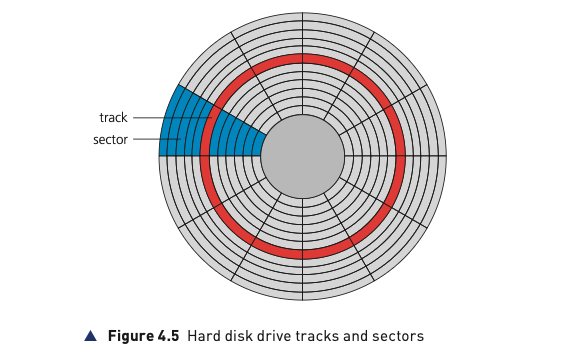
On a magnetic hard disk, deleting and extending files can leave pieces of the same file scattered across different sectors. The read/write head then has to move more often, increasing access time. Defragmentation software rearranges file blocks so that they are stored in contiguous sectors wherever possible. This reduces head movement and improves access time. This problem does not affect an SSD in the same way because solid-state storage has no moving read/write head.
Other disk and file utilities
Disk contents analysis and repair utilities examine storage for faults or file-system problems and attempt repairs where possible. File compression utilities reduce file sizes so that files occupy less storage and can be transmitted more quickly. File management utilities help organise, copy, move, rename and delete files and folders.
Back-up software
An operating-system back-up utility can schedule automatic back-ups and can back up changed files. For strong protection, the source recommends three versions of important data: the current working copy, a local back-up on a separate storage device, and a remote copy stored away from the computer, for example in cloud storage. Back-up utilities may also restore files or the whole system and create restore points.
The textbook examples include Windows File History, which takes regular snapshots and can retain earlier file versions, and macOS Time Machine, which automatically makes hourly back-ups, daily back-ups for the past month and weekly back-ups for older months. When the selected back-up drive fills, the oldest back-ups can be removed to make room for newer ones.
Security software
Security utilities manage access control and user accounts, work with malware protection, protect network interfaces through firewalls, use encryption/decryption to protect intercepted data and help verify that software updates come from legitimate sources.
Screensavers
Screensavers originally helped prevent phosphor burn on CRT displays. Modern LCD/OLED screens do not need them for that purpose, but screensavers may still customise a computer, lock a workstation after inactivity and sometimes provide idle time in which background tasks can run.
Device drivers and descriptors
A device driver is software that allows the operating system to communicate with a hardware device. When a device is connected, the operating system searches for the correct driver; if it cannot find one, the device may be reported as not recognised. USB device drivers include information called descriptors, such as a vendor ID (VID), product ID (PID) and, where present, a unique serial number. These details help the operating system identify the connected device correctly.
Operating systems
An operating system (OS) is system software that provides the environment in which application programs run and provides an interface between the user and the computer. It hides much of the complexity of the hardware and manages the computer’s resources. Desktop operating systems are normally stored on HDD/SSD; mobile devices normally store the OS in solid-state storage.
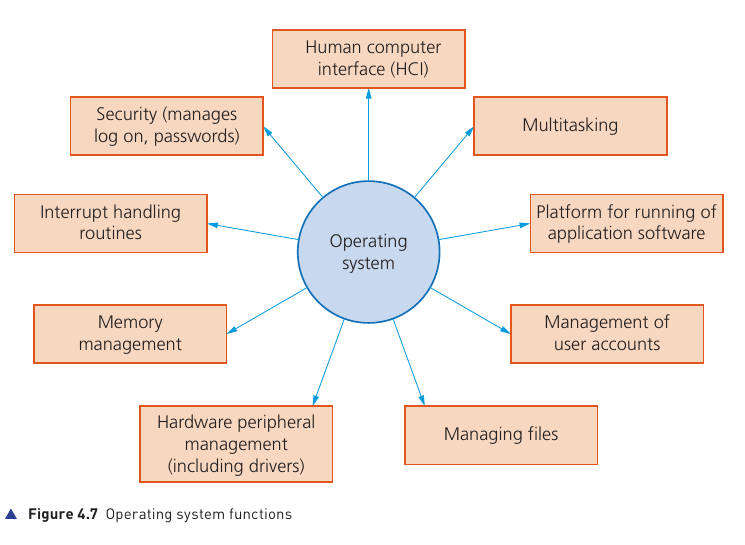
1. Human–computer interface (HCI)
The HCI lets the user communicate with the computer. The source describes two main forms: command line interface (CLI) and graphical user interface (GUI).
| CLI | GUI |
|---|---|
| Advantages: direct communication with the computer, not restricted to predetermined icons/options, can alter detailed configuration settings, uses relatively little memory. | Advantages: user does not need to memorise commands, icons make it user-friendly, pointing or touch input makes common tasks simple. |
| Disadvantages: commands must be learned, typed accurately and in the correct format; this takes time and can cause errors. | Disadvantages: needs more memory/resources and the user is largely limited to the options the interface provides. |
| Typical users: programmers, technicians and analysts who need direct control. | Typical users: ordinary end users running applications, games and media tools. |
Many desktop GUIs use WIMP: windows, icons, menus and a pointing device. A window manager coordinates the interaction between open windows, applications, the pointing device and the cursor position. Mobile devices increasingly use post-WIMP interactions such as touch, pinch and rotation gestures.
2. Memory management
The OS manages RAM, keeps track of memory locations and moves data between RAM and secondary storage when required. It also provides memory protection so that competing applications do not accidentally use the same memory locations. Without this protection, data could be lost, applications could produce incorrect results, private data could become visible to the wrong software, or the computer could crash.
3. Security management
The OS helps preserve data integrity, confidentiality and availability. It can install updates, work with anti-virus software and firewalls, manage user IDs/passwords, privileges and access rights, support recovery/system restore and help prevent unauthorised access.
4. Hardware peripheral management
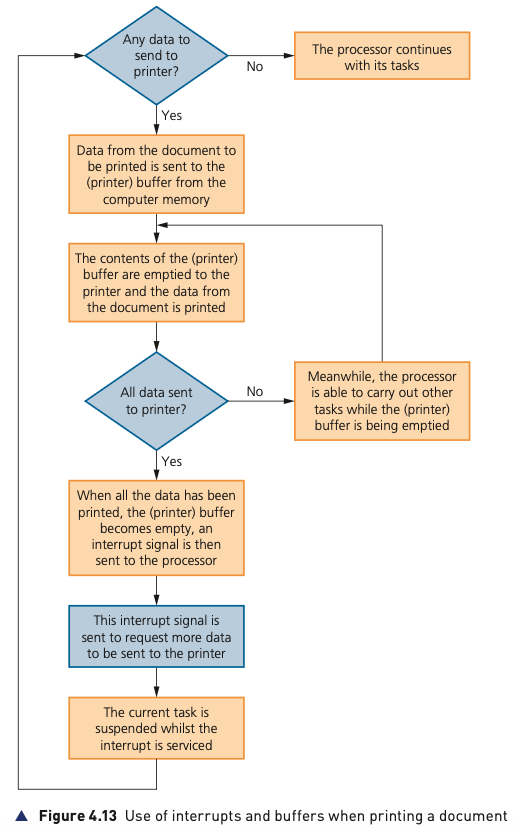
The OS communicates with peripherals through device drivers. It manages hardware priorities and can control queues and buffers. For printing, for example, the OS loads the printer driver, sends data to a printer buffer, may place jobs in a queue when the printer is busy, sends control commands and receives error messages or interrupts.
5. File management
The OS maintains files and folders. This includes file-naming conventions and extensions such as .docx, .txt, .htm and spreadsheet/database extensions; operations such as create, open, close, delete, rename, copy and move; maintaining directory structures; enforcing access rights, password protection and file locking; and allocating memory when a file is read from HDD/SSD into RAM.
6. Interrupt handling
The operating system coordinates interrupt handling so that events from hardware or software can be serviced without losing the state of the task already being processed. The detailed interrupt sequence is covered in 4.1.4.
7. Platform for running application software
Applications rely on services supplied by the operating system, such as memory allocation, file access, device drivers, input/output handling and the user interface. This is why application software normally cannot operate directly on bare hardware.
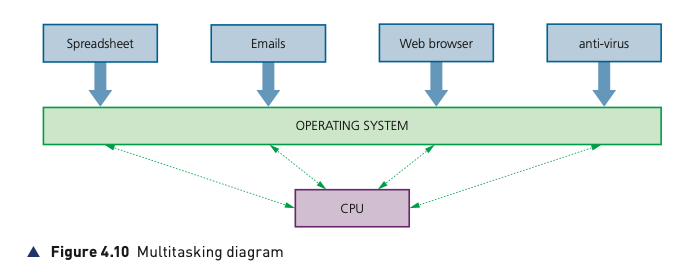
8. Multitasking
Multitasking allows several processes to appear to run at the same time. The OS allocates resources for limited periods, can interrupt a running process and gives processes priorities. These ideas form pre-emptive multitasking. Main memory, secondary storage and CPU time can then be shared efficiently. A risk is that a very low-priority process can be starved of resources.
9. Management of user accounts
When several people use the same computer or network, the OS maintains separate user accounts. Each user can have their own files, folders and interface settings. An administrator can create/delete accounts and restrict what each account is allowed to do. In large multi-user systems, different access levels can keep sensitive data separate from routine work.
Running of applications
Application software depends on the operating system to provide a working platform. Before applications can run, the computer must start up and load the necessary part of the OS into RAM.
Booting and the BIOS
- When the computer is powered on, the motherboard start-up process is handled by the BIOS (Basic Input/Output System).
- The BIOS identifies where the storage device containing the operating system is located.
- A bootstrap loader loads the required part of the operating system into RAM.
- The OS begins executing and takes control of the computer.
- When an application is started, the OS allocates memory and provides access to files, peripherals and drivers as needed.
The BIOS is an example of firmware: a program that provides low-level control for hardware. The source explains that the BIOS program can be stored in EEPROM flash memory, so its program remains when power is removed and can still be updated. BIOS settings are held separately in CMOS memory, maintained by a battery on the motherboard; if the CMOS loses power, customised settings can return to factory defaults.

While an application runs, the OS remains in control. The application may need drivers and other system software, and different OS components may be loaded into and out of RAM as required.
Interrupts
An interrupt is a signal sent by hardware or software to the microprocessor. It tells the processor that an event needs attention. The processor may temporarily stop the current task, service the interrupt, and then return to the interrupted task.
Causes of interrupts
- Timing signal — an event generated according to time.
- Input/output request — for example, a printer or disk drive needing more data.
- Hardware fault — for example, a printer paper jam.
- User interaction — for example, keyboard input or a key combination that requests attention.
- Software error — for example, a missing executable file, conflicting access to memory or an attempt to divide by zero.
Interrupts can have different priorities. The system identifies the type and priority before deciding how the event should be handled.
Buffers
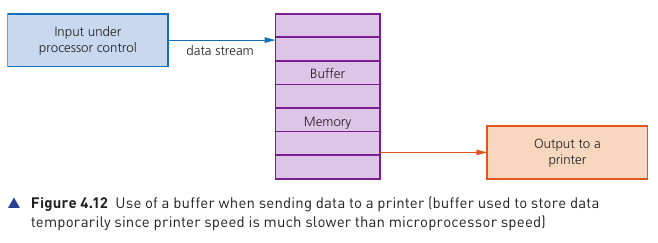
A buffer is an area of memory used to hold data temporarily. Buffers are useful when two devices or processes operate at different speeds. For example, the processor can quickly place print data in a buffer while a much slower printer takes data from that buffer at its own rate. Buffering is also used in streamed media to smooth short-term differences between receiving data and playing it.
How an interrupt is serviced
- An interrupt signal is received.
- The processor completes or pauses the current instruction/task at a safe point.
- The current task’s state is saved, including the Program Counter (PC) and other register contents.
- The processor loads the start address of the appropriate Interrupt Service Routine (ISR) into the PC.
- The ISR runs and deals with the event.
- When servicing is complete, the saved register contents and task state are restored.
- The original task continues from where it was interrupted.
Buffers and interrupts when printing
Printing is much slower than normal processor operations. The processor therefore sends document data to a printer buffer and then continues with other work while the printer empties the buffer. When the buffer becomes empty and more document data remains, the printer can generate an interrupt requesting more data. The processor briefly suspends its current task, services the request by refilling the buffer, then resumes the task. This prevents the CPU from sitting idle for the whole printing time.