5.3 Cyber security
Cyber security is about protecting computer systems and data from unauthorised access, interception, damage, disruption and deception. This topic first explains the main threats and then shows the methods used to reduce those risks.
What you need to understand
You should be able to describe the cyber security threats in the textbook, explain how each threat works and why it is dangerous, and explain suitable ways to protect systems and data. You also need to understand access levels, anti-malware, authentication, strong passwords, biometrics, two-step verification, software updates, suspicious-email clues, firewalls, proxy servers, privacy settings and secure connections using SSL.
Cyber security threats
Data may be personal, financial or commercially sensitive. It can be corrupted or deleted accidentally, but this section concentrates on deliberate attacks. The textbook covers brute force attacks, data interception, DDoS attacks, hacking, malware, phishing, pharming and social engineering.
Brute force attacks
A brute force attack tries many possible passwords until the correct one is found. An attacker may begin with very common passwords before moving to a word list containing many likely words and combinations. A longer password containing a greater variety of characters is harder to crack because the attacker must test many more possibilities.
Data interception
Data interception means stealing or eavesdropping on data while it is being transmitted over a wired or wireless communication link. A packet sniffer can examine data packets travelling across a network and send useful information back to an attacker.
On wireless networks, the textbook describes wardriving (also called access point mapping): an attacker can use a laptop or smartphone, an antenna, GPS and suitable software to locate and intercept Wi-Fi signals from outside a building. This may expose personal or confidential data without the user realising it.
Encryption does not stop someone intercepting the transmission, but it makes the captured data difficult to understand without the decryption key. The textbook also recommends protecting the wireless router with complex passwords, using a firewall, and being cautious with unsecured public Wi-Fi. It specifically refers to WEP as an encryption protocol in this discussion.
Denial of Service and Distributed Denial of Service
A Denial of Service (DoS) attack aims to stop legitimate users accessing a network service, website, email account or online service. One method is to flood a server with huge numbers of useless requests. Because a server can handle only a limited number of requests at once, legitimate users may be unable to get a response.
In a Distributed Denial of Service (DDoS) attack, the unwanted traffic comes from many different computers. This makes the attack harder to block because there is not just one source.
| Signs mentioned in the textbook | Ways to reduce the risk |
|---|---|
| Slow network performance | Use an up-to-date malware checker |
| Inability to access some websites | Use a firewall to restrict traffic |
| Very large amounts of spam email | Use email filters to remove unwanted traffic |
Hacking
Hacking is gaining illegal access to a computer system without the owner’s permission. A hacker may steal personal information, cause identity theft, delete files, alter data, corrupt data or pass data to other people.
Encryption can make stolen data unreadable, but it does not itself stop the hacker deleting or corrupting the data. The textbook gives firewalls, usernames, frequently changed strong passwords, anti-hacking software and intrusion-detection software as protective measures.
Ethical hacking is different: a company gives authorised specialists permission to test its security and identify weaknesses. Because permission has been granted, this is not the malicious hacking described above.
Malware
Malware is malicious software designed to damage, disrupt, monitor or misuse a computer system or its data. The textbook concentrates on six forms: viruses, worms, Trojan horses, spyware, adware and ransomware.
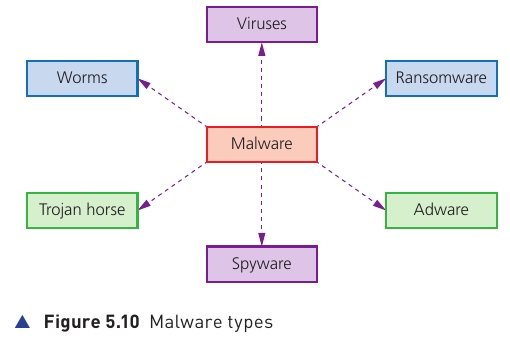
| Malware | How it works | Important distinction |
|---|---|---|
| Virus | Replicates with the intention of deleting/corrupting files or causing the system to malfunction. | Needs an active host program or already infected operating system and normally needs a trigger/execution. |
| Worm | Stand-alone malware that self-replicates and spreads across networks, often exploiting weak security. | Unlike a virus, it does not need a host program or repeated action by end-users to spread. |
| Trojan horse | Looks like legitimate software but contains malicious instructions. It may replace all or part of genuine software. | Usually depends on the user running/opening it. It can then install spyware or ransomware. |
| Spyware | Monitors a user’s activity and sends gathered information back to a cybercriminal. | May collect browsing activity, passwords, bank details and credit/debit-card information. Key logging can be part of spyware. |
| Adware | Floods the user with unwanted advertising, redirects browsers or changes search behaviour. | May not always be destructive, but can expose security weaknesses and can be difficult to remove. |
| Ransomware | Encrypts or locks data and demands payment before access is restored. | Can arrive through a Trojan horse or social engineering. Regular backups reduce the damage if files become inaccessible. |
Viruses are commonly spread through infected attachments, websites or software downloads. Worms can spread much more independently through a network. Trojan horses rely heavily on deception. Spyware quietly gathers information. Adware focuses on unwanted advertising and browser redirection. Ransomware holds data or access “hostage”.
Phishing
Phishing uses legitimate-looking emails to trick a user. The email may contain a link or attachment that leads to a fake website, or it may ask the user to supply sensitive information such as account or card details. The message often appears to come from a bank or other trusted organisation.
The key feature is that the user normally has to do something for the attack to succeed: click the link, open the attachment or provide information. The textbook recommends awareness training, avoiding uncertain links, using anti-phishing browser tools, checking secure connections, reviewing accounts regularly, keeping the browser and firewall up to date, and treating suspicious pop-ups with care.
Spear phishing is a more targeted form in which a particular person or organisation is selected rather than sending a broad attack to many random users.
Pharming
Pharming redirects a user’s browser to a fake website without the user deliberately clicking a malicious link. Malicious code may be installed on the user’s computer or a website, or the attack may involve DNS cache poisoning, where the IP address stored for a genuine domain is altered so the browser is directed to the attacker’s site.
Unlike phishing, pharming can be initiated without the user taking an obvious action. The textbook suggests anti-virus software, modern browser warnings, careful checking of website spelling and checking for secure HTTPS connections as ways of reducing the risk.
Social engineering
Social engineering manipulates people into breaking normal security procedures. Instead of defeating technical protection directly, the cybercriminal exploits human behaviour so the victim willingly opens malicious content, reveals information or allows access.
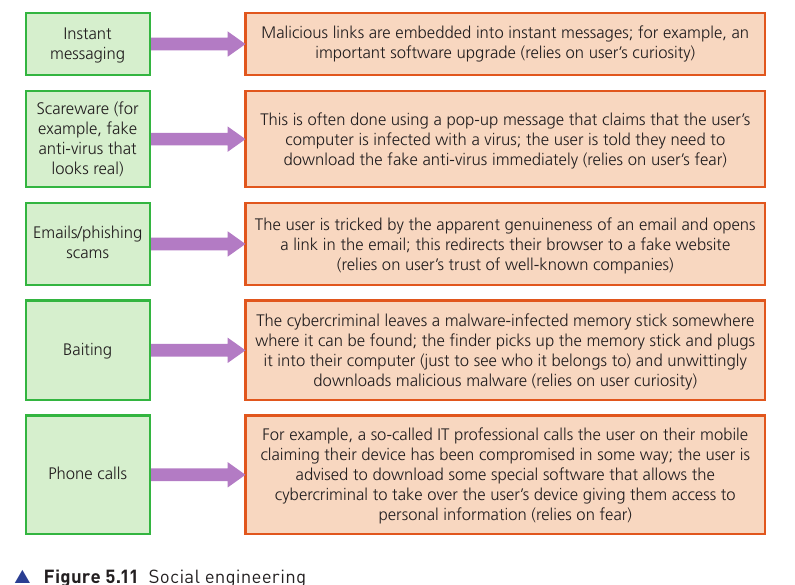
The textbook gives five common examples:
- Instant messaging: malicious links may be disguised as useful software updates.
- Scareware: a frightening pop-up claims the computer is infected and urges the user to install fake security software.
- Email/phishing scams: a convincing message sends the user to a fake site.
- Baiting: an infected memory stick is deliberately left where a curious person may plug it into a computer.
- Phone calls: a caller pretends to be an IT professional and persuades the victim to install software or reveal information.
These attacks often exploit fear, curiosity, empathy or trust. The victim is pushed into making a quick decision without checking whether the situation is genuine.
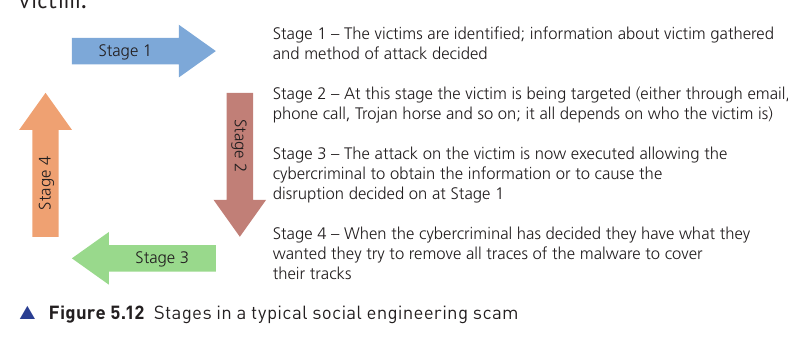
- The attacker identifies a victim, gathers information and decides how to attack.
- The victim is targeted using the chosen method, such as an email, phone call or Trojan horse.
- The attack is carried out to obtain information or cause the planned disruption.
- The attacker attempts to remove evidence and cover their tracks.
Keeping data safe from security threats
No single security method can stop every threat. The textbook therefore describes several layers of protection, ranging from controlling who may access data to using anti-malware, authentication, software updates, network protection and encrypted connections.
Access levels
User accounts can be given different access levels. A person should only be allowed to see or change the data needed for their role. For example, in a hospital a consultant may need access to confidential patient data whereas a cleaner should not.
In databases, access levels can control who is allowed to read, write or delete data. On social networks, the textbook describes four typical levels: public, friends, custom and data owner. Privacy settings help the user decide which people can see which information.
Anti-malware
The textbook identifies anti-virus and anti-spyware as two common anti-malware tools. Anti-spyware can identify spyware by looking for known rules/features or suspicious file structures. Its functions may include detecting/removing spyware, preventing spyware downloads, encrypting files and keystrokes, blocking unauthorised webcam/microphone access and warning if personal information appears to have been stolen.
Authentication
Authentication means proving that a user really is who they claim to be. The textbook groups authentication evidence into three categories:
- Something you know — for example a password or PIN.
- Something you have — for example a registered mobile phone or tablet.
- Something unique to you — biometric characteristics.
Usernames and passwords
Passwords restrict access to systems, email accounts, banking, shopping and social networks. They should be difficult to guess and should be changed regularly. The textbook recommends avoiding obvious personal information such as a pet’s name or favourite colour and describes strong passwords as including a mixture of capital letters, numerical values and other keyboard characters.
When typed, passwords are commonly masked using symbols such as asterisks. A username and password must match. Systems may also limit the number of failed attempts — the textbook gives three attempts as a common example — before locking the account. Password resets are often sent through a separate email link as an additional precaution.
Biometrics
Biometrics identifies a user using a unique human characteristic. Examples in the textbook include fingerprint scans, retina scans, face recognition and voice recognition.
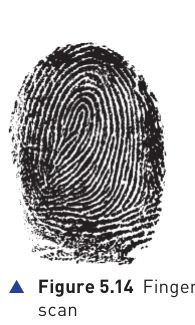
Fingerprint scanning
Fingerprint systems compare the pattern of ridges and valleys with previously stored scans. The textbook gives an accuracy of about 1 in 5000. Benefits include uniqueness, no physical card to lose and difficulty in signing in for another person. Drawbacks include installation cost, reduced accuracy when fingers are damaged or dirty and concerns about privacy/civil liberties.
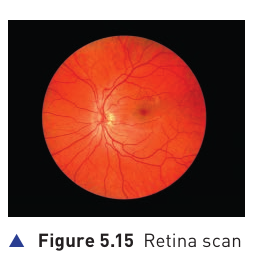
Retina scanning
A retina scan uses infrared light to identify the unique pattern of blood vessels at the back of the eye. The textbook states that it is highly secure and gives an accuracy of about 1 in 10 million, but it is intrusive, relatively expensive and can be slower because the user must remain still during scanning.
| Technique | Benefits in the textbook | Drawbacks in the textbook |
|---|---|---|
| Fingerprint | Developed technology, easy to use, relatively small storage requirements | Can feel intrusive; dirty/damaged skin can affect matching |
| Retina | Very high accuracy; difficult to replicate | Intrusive, may be slower, expensive |
| Face recognition | Non-intrusive and relatively inexpensive | Lighting, hair, age and glasses can affect recognition |
| Voice recognition | Non-intrusive, quick and relatively inexpensive | Voice can be recorded; lower accuracy; illness can change the voice |
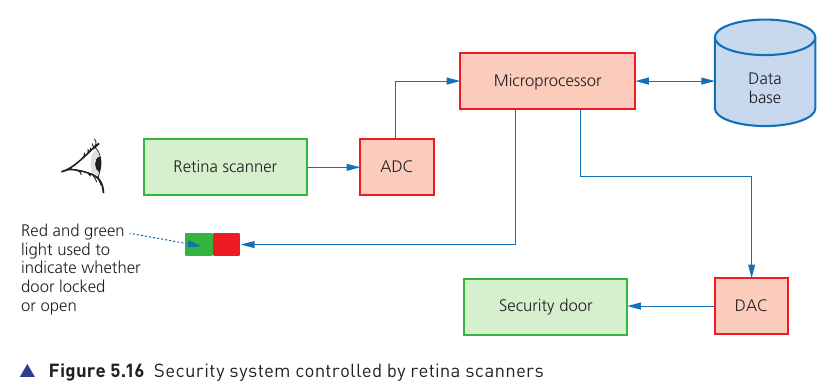
Example: retina-controlled security door
The retina scan is converted to digital data and sent to a microprocessor. The processor compares it with stored data in a database. A match causes the system to indicate success and unlock the door using output control; a non-match leaves the door locked.
Two-step verification
Two-step verification uses two authentication methods. In the textbook example, the user first enters a username and password. A one-time pass code is then sent to a registered mobile phone or email address, and the user must enter that code to continue.
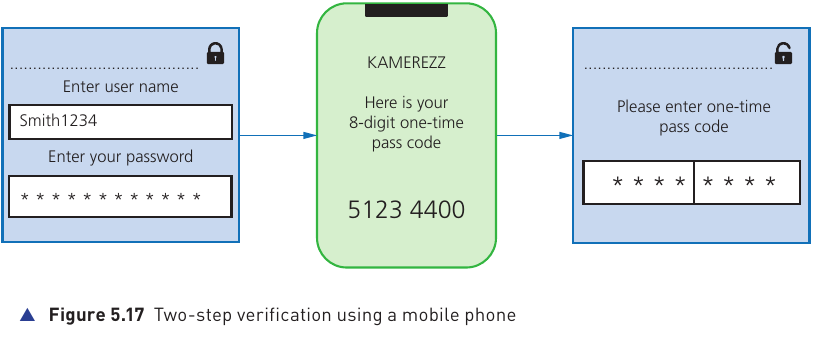
This combines something the user knows with something the user has.
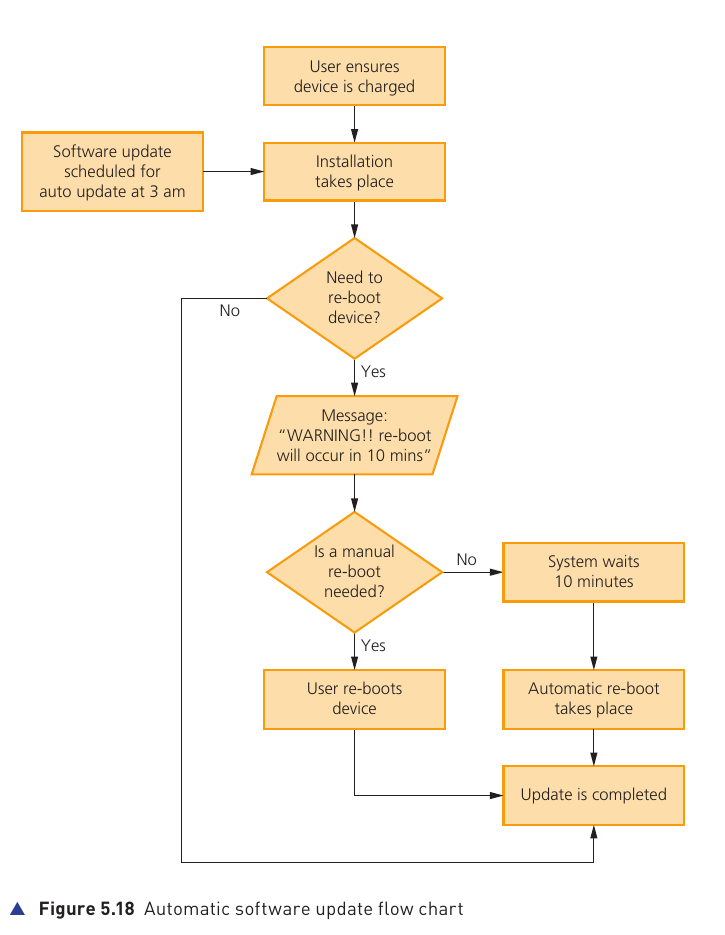
Automatic software updates
Automatic updates keep software current. Updates may include patches that close security weaknesses, remove bugs or add improvements. The textbook notes that updates can occasionally cause new problems, in which case a later patch or system-recovery method may be required.
Checking emails and URL links
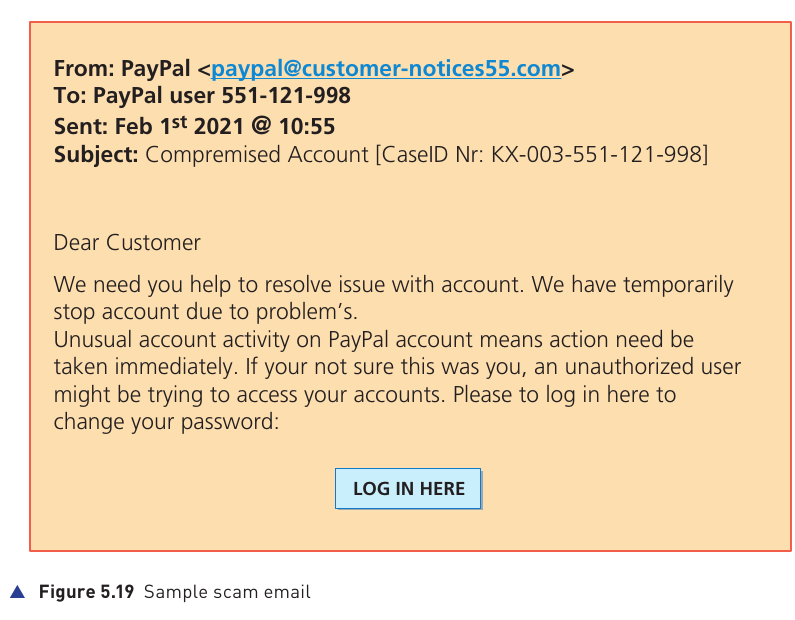
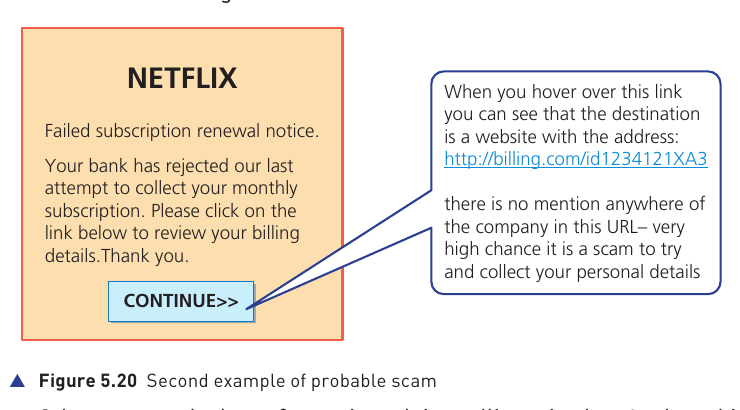
The textbook gives several warning signs that can reveal phishing or other scams:
- Check the sender’s email address. The domain after the @ symbol should make sense for the organisation.
- Look at spelling, grammar and tone. Poor language, urgency or pressure to act immediately can be a warning sign.
- Look for typo squatting. A fake domain may be deliberately spelled very similarly to the real one.
- Inspect suspicious links. The destination shown when hovering over a link should match the organisation and the purpose of the email.
- Check the complete web address. The textbook also points to secure HTTPS links and sensible domain names as clues.
Firewalls
A firewall may be hardware or software. It sits between a computer/internal network and an external network such as the internet and monitors incoming and outgoing traffic.

A firewall can check traffic against rules, block traffic that fails the rules, warn the user or network manager, log traffic for later investigation, block access to selected websites or IP addresses, and warn when software tries to communicate with an external source.
However, it cannot solve every security problem. The textbook points out that users on an internal network can sometimes bypass the firewall with their own devices, careless or dishonest employees are still a risk, and a user on a stand-alone computer may disable the firewall.
Proxy servers
A proxy server acts as an intermediary between a user and a web server.
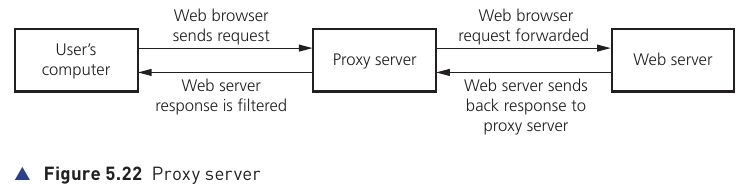
- It can filter internet traffic and block access to selected websites.
- It can hide the user’s IP address.
- It can allow valid requests and reject invalid traffic or requests from blocked IP addresses.
- Because it sits between the user and web server, an attack may hit the proxy rather than the web server directly.
- It can use a cache so frequently requested web pages are delivered faster.
- The textbook notes that a proxy server can also act as a firewall.
Privacy settings
Privacy settings control who can see a user’s information and what websites/apps can collect or share. The textbook gives examples such as “do not track”, checking saved payment methods, safer-browsing warnings, controlling browser history and cookies, advertising opt-outs and disabling location sharing in apps.
Secure Sockets Layer (SSL)
SSL is a security protocol used to help data travel securely across a network. The textbook explains that an SSL-protected website encrypts data exchanged between the user’s browser and the web server. The user can recognise a secure connection through https and a padlock indicator.
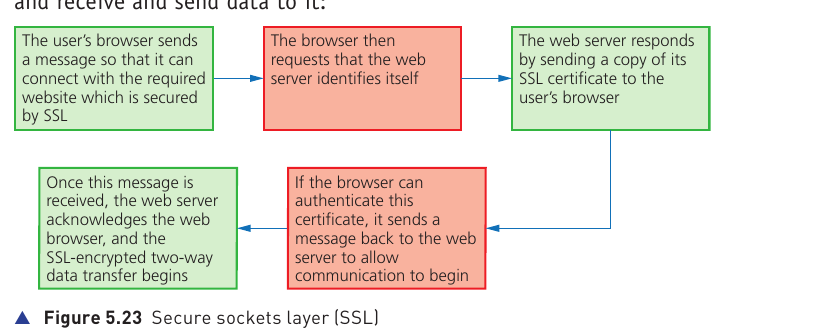
An SSL certificate is a digital certificate used to authenticate a website. The process shown in the textbook is:
- The browser asks to connect to a website secured by SSL.
- The browser asks the web server to identify itself.
- The web server sends a copy of its SSL certificate.
- The browser authenticates the certificate and sends a message allowing communication to begin.
- The server acknowledges the browser and the encrypted two-way data transfer starts.
The textbook lists online banking, online shopping, restricted software distribution, email, cloud storage, intranets/extranets, VoIP, instant messaging and social networking as examples where SSL can be used.
Optional extension in the textbook: TLS
The book includes an A Level extension on Transport Layer Security (TLS), described as a newer and more secure development of SSL. It separates communication into a record protocol carrying data and a handshake protocol used to authenticate the parties and agree encryption. The extension also describes session caching and a certificate-based handshake in which the browser checks the certificate authority, validity dates and domain before a temporary session key is established.